


New article
Recently updated
Adding new Induction assessments

Who is this article for?
Administrators who want to learn how to add new Induction assessments.
Administrator permissions are required.
Effective assessments are crucial for ensuring employees understand company policies and procedures, and this article guides you through creating and implementing new Ideagen EHS Core Induction assessments that are both comprehensive and user-friendly.
Understanding assessments
The Assessment screen is part of the Course Module page and is where administrators can create assessments to be completed by users once all resources in the module have been viewed.
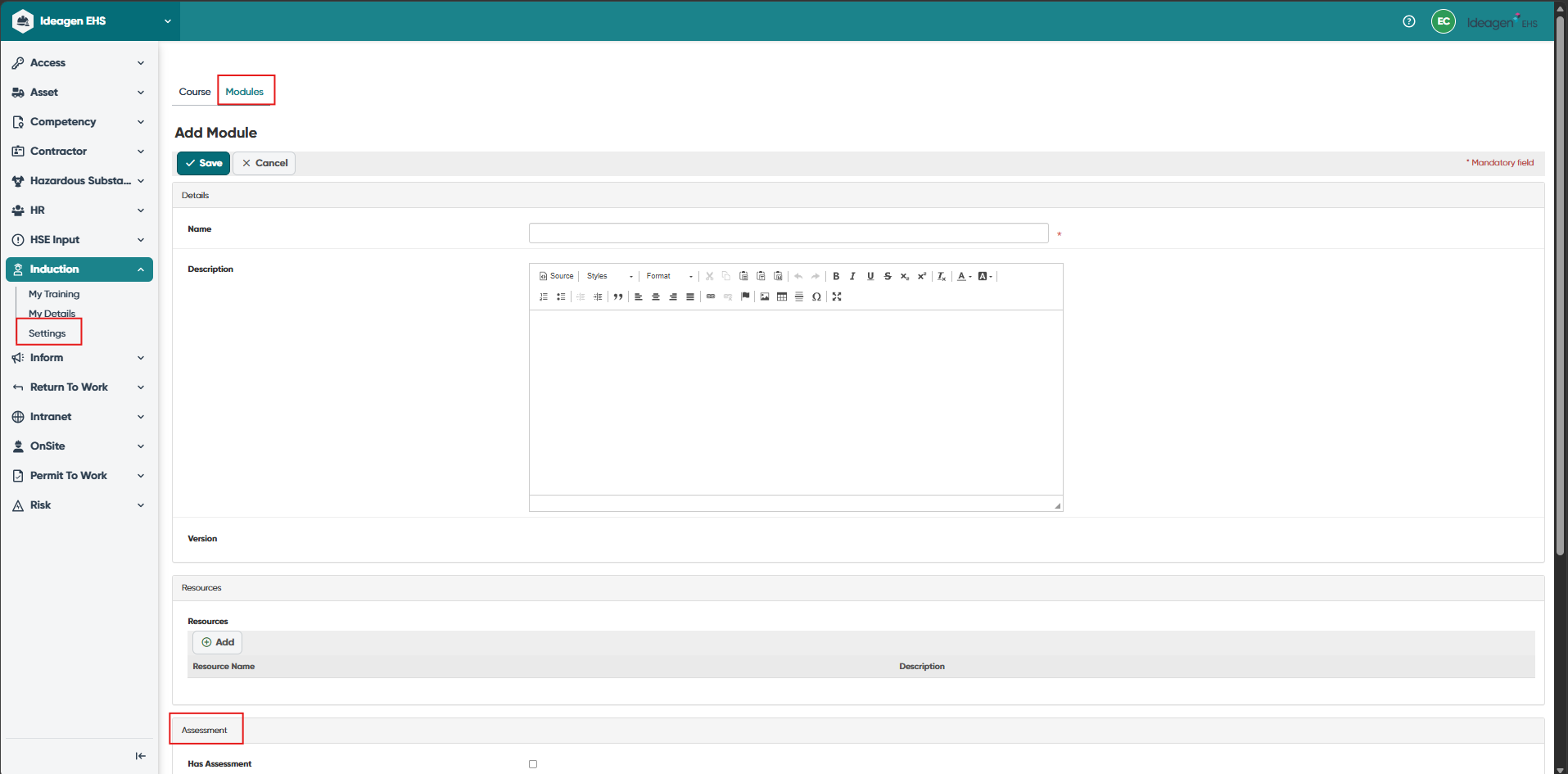
Note: If an assessment is built into a resource, an assessment may not be required for a module as it's not a mandatory feature. However, it can be useful to validate a user's learning and ensure the concepts covered have been sufficiently understood.
- Only one assessment can be created per module but it can consist of as many questions as required
- Assessments will be accessible to users when all resources in the module have been viewed
Adding a new assessment
To add a new assessment:
- Go to the Module page.
- Complete all the fields in the Assessment section (see table below).
- Add questions.
- Click Save.
Note: The details captured for each course may vary slightly between each system configuration.
Fields marked with * are mandatory.

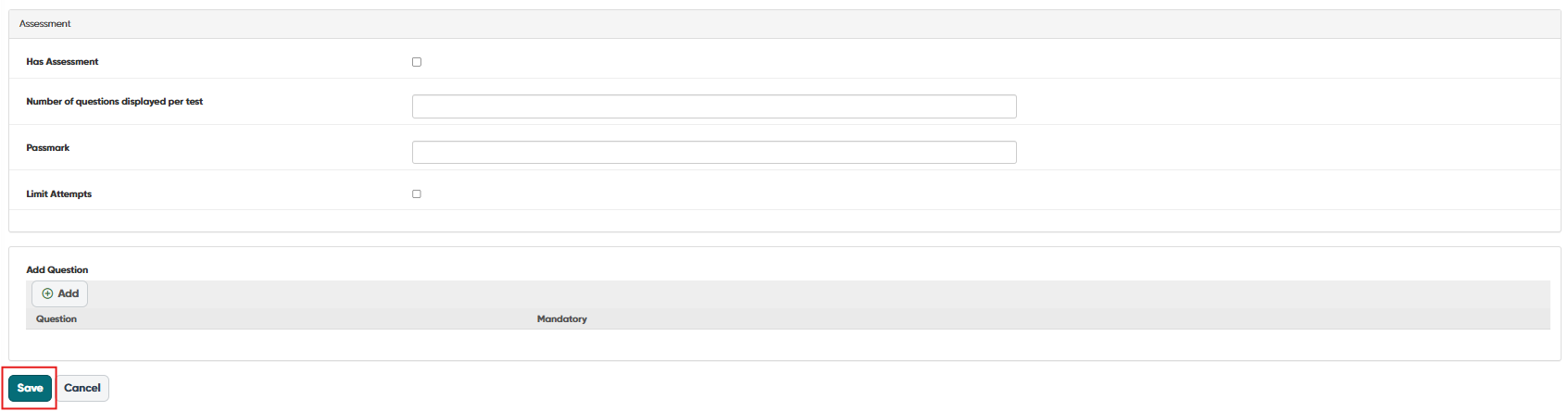
Definition of fields
Has Assessment
Tick if the module is to have an assessment. If unticked, the assessment will not be displayed to the user, even if there are questions in the Add Question list.
Number of Questions Displayed per Test
Ideagen EHS Core Induction supports the use of a bank of questions but will only display a certain number to users. This means each person that completes the assessment will receive a different configuration of questions. For example, if 5 is selected as the number of questions to display but 10 questions are written in the Add Question list, the user will receive 5 questions from the bank of 10 to complete. If a question is marked as mandatory, it will always be displayed to users and all other questions will be randomly selected from the remaining bank. If all questions are required to be completed by users, the number entered here must match the number of questions in Add Question list.
Pass Mark
Enter pass mark as a number. For example, if 10 questions are to be displayed, enter 10 for a 100% pass mark, 8 for an 80% pass mark and so on.
Limit Attempts
If selected, the user will be marked as failed if they are unable to pass the assessment within the designated number of attempts.
Number of Attempts
If Limit Attempts is selected, enter the number of attempts a user can take before being marked as failed. When a course is failed, the user can no longer reattempt it and will need to contact an administrator for assistance. It is recommended the user is given additional training to ensure the required knowledge is obtained prior to attempting to reset the course. When ready, the course can be reset to allow the user to reattempt it.
Creating assessment questions
Questions are all configurable as multiple choice. There is no limit to the number of potential answers, but there must only be one correct answer.
When creating assessment questions:
- Design for clarity, not confusion – Ensure answers are unambiguous and easily found in the resource material
- Keep it manageable – Limit to 5 questions if a 100% pass mark is required. More questions increase difficulty exponentially
- Be concise – Use short, direct questions. Avoid lengthy or complex wording
- Consider your audience – Account for potential language barriers. Use clear language. Avoid double negatives
- Ensure grammatical correctness and proper spelling
- Provide one definitive correct answer – Avoid multiple potentially correct options
- Allow flexibility in answer options – No limit on number of choices, but only one correct answer
Adding a new question
To add a new question:
- Go to the Question section in the Module page.
- Click Add.

- Complete the fields (see table below).
- Click Save.
Note: The details captured for each course may vary slightly between each system configuration. Fields marked with * are mandatory.
Definition of fields
Question
Enter the question, considering best practice question writing tips.
Mandatory
Tick if the question is mandatory and must be completed by every user, even if a question bank is used.
Answers
To enter answers for the question:
- Click Add New for the answer box to open.
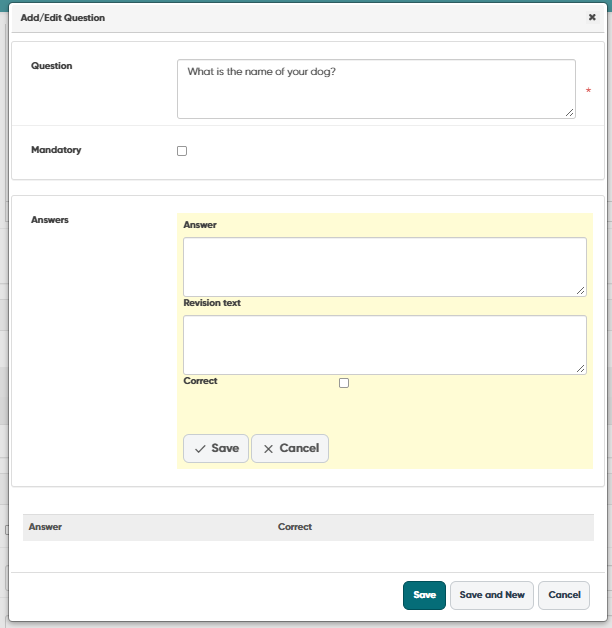
- Enter text for the answer.
- If the answer is the correct option, tick the Correct box (each question must have only 1 correct answer and at least 1 incorrect answer).
- Enter revision text if required – this will display to the user if they achieve the overall required pass mark but had a question incorrect.
- Click Save.
The answer will be displayed in the list at the bottom of the Question screen with edit, sort and delete options available.

- Click Add New to enter further answers.
- Click Save and New to enter a new question or Save to exit the question screen.
Managing questions and answers
Questions and answers can be viewed at the bottom of the Module screen by clicking the + sign next to the answer. Click - to minimise the answer.
