


New article
Recently updated
Adding and managing non-conformance records

Who is this article for?
Administrators and users needing to add and manage non-conformances.
Administrator permissions required..
This article explains how to create and manage non-conformance records within the Incident module, including completing all required fields and tracking updates.
Adding a new non-conformance
To create a new non-conformance record:
- Navigate to the Incident module.
- Select Non-Conformance from the list of available issue types.
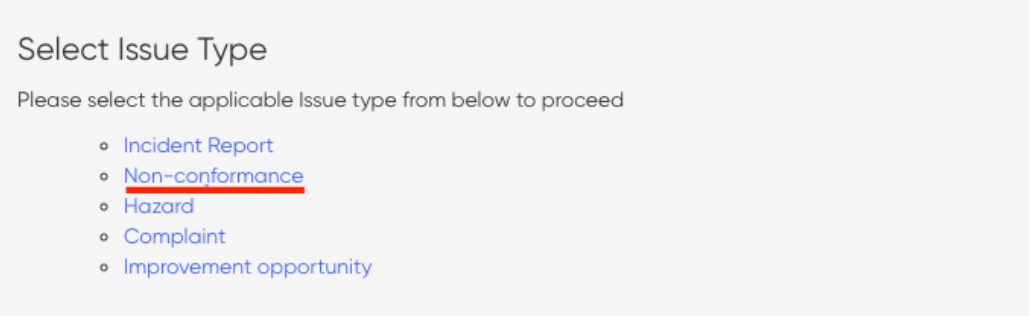
This will open a new non-conformance form where you can enter the required information.
Completing the non-conformance form
Fill in all required fields before submitting the record. The sections below explain the purpose of each field.
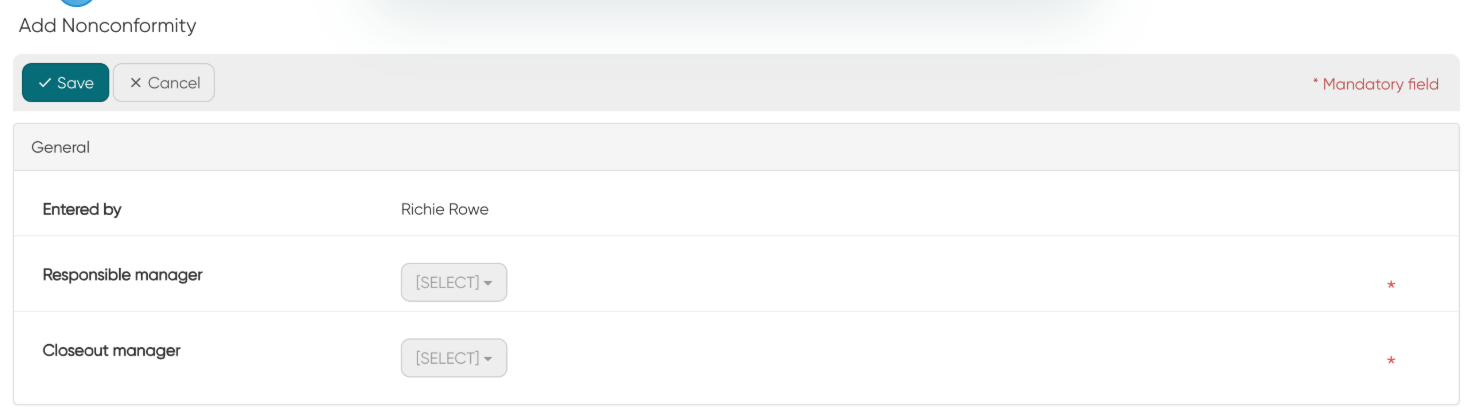
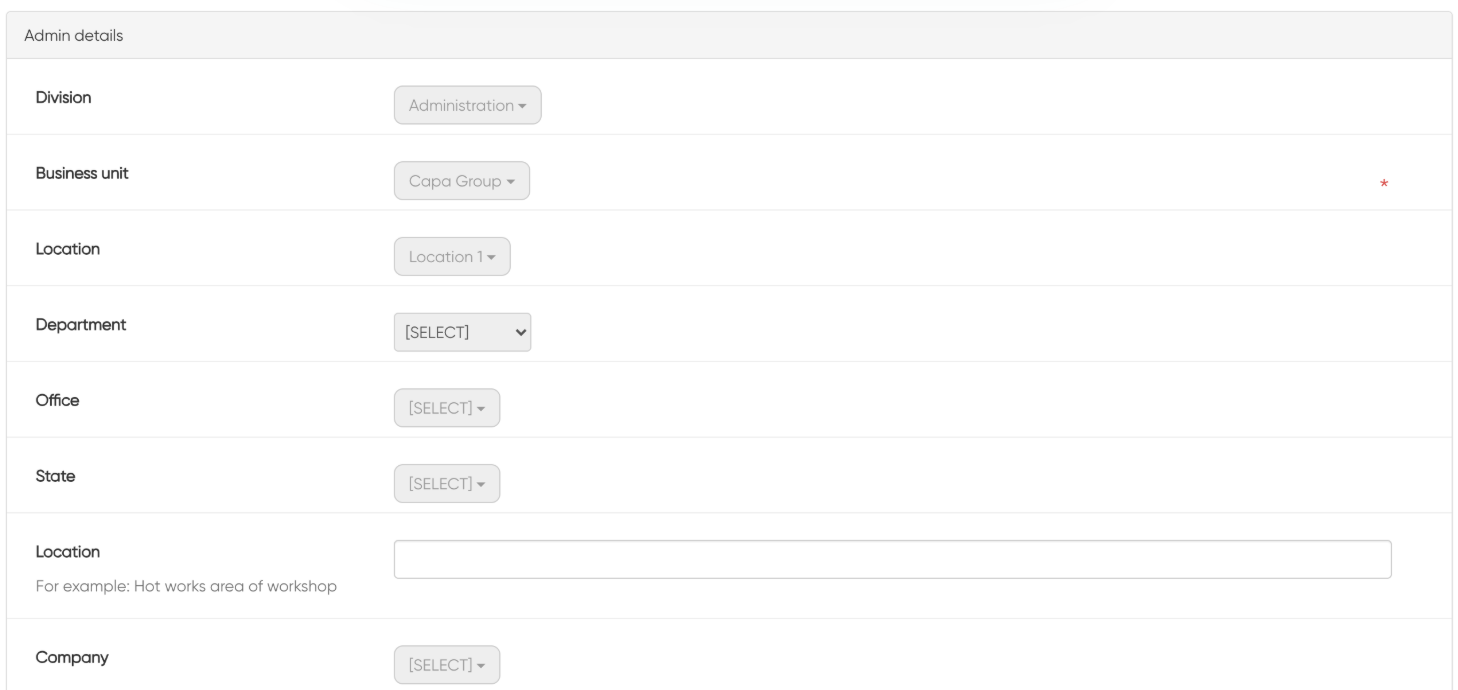
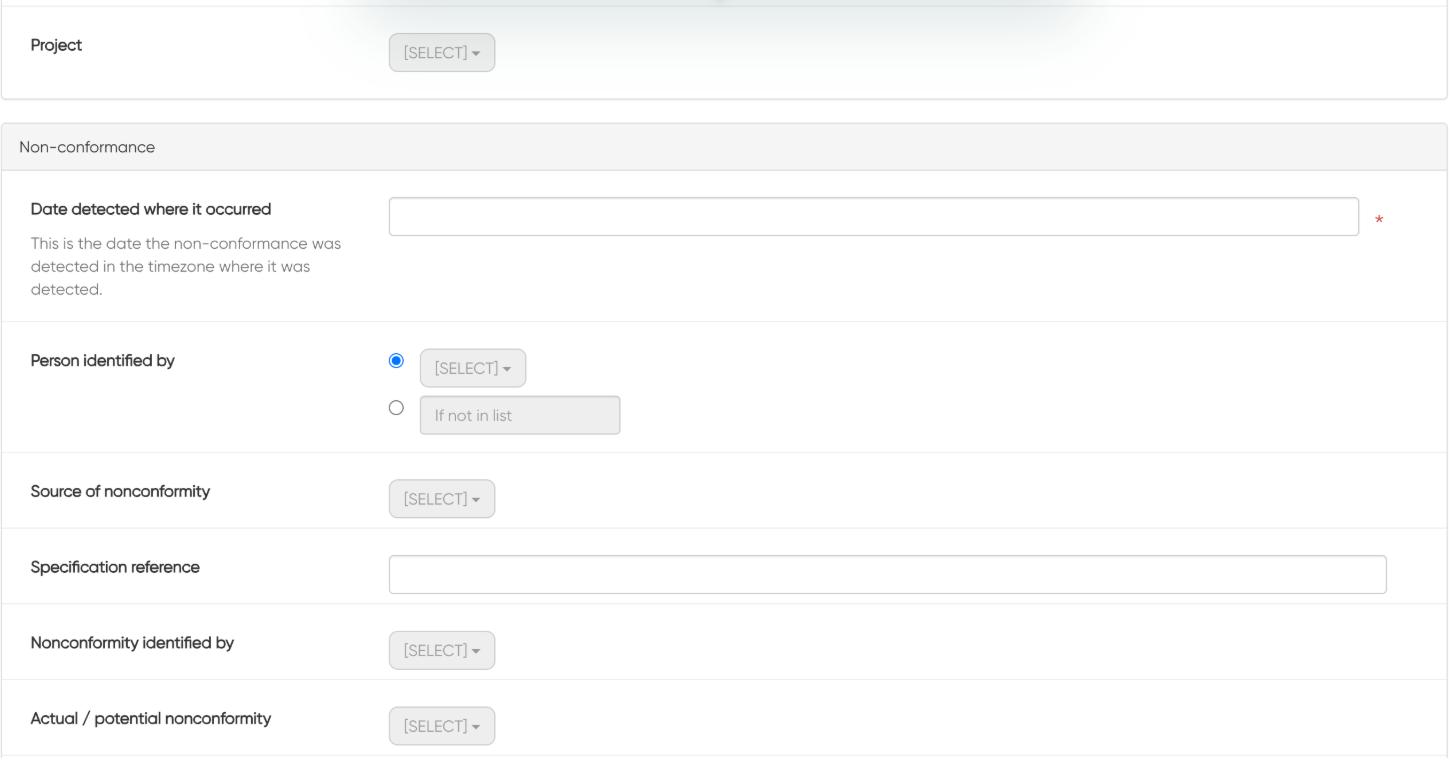
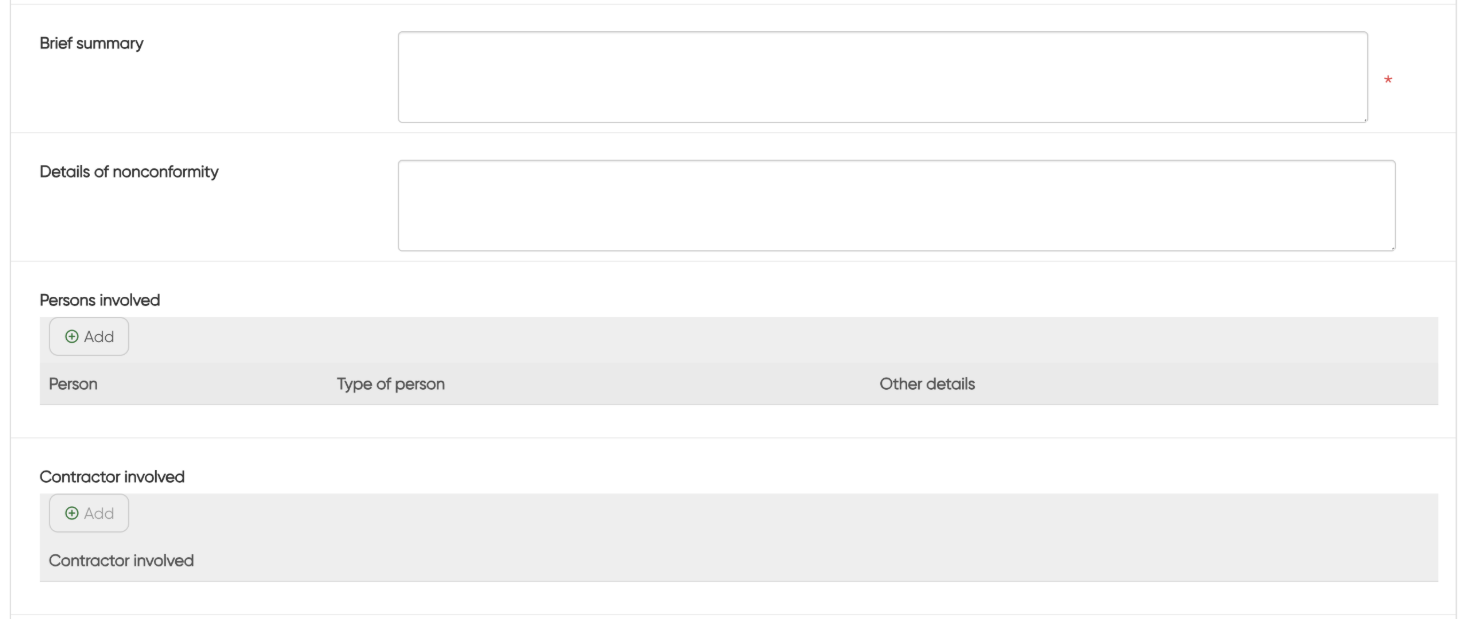
Date Detected: Use the date selector tool or enter the date the non-conformance was detected (defaults to date entered).
Source of Non-Conformity: Select the source of the non-conformance, for example: policy, equipment, contract specification.
Specification Reference: Enter the specification reference if relevant.
Non-Conformity Identified By: Select how the non-conformance was identified, for example: complaint, inspection, audit.
Actual / Potential Non-Conformity: Select if an actual or a potential non-conformance.
Brief Summary: Enter a summary on the non-conformance.
Details of Non-Conformity: Enter additional details on the non-conformance.
Adding persons involved
Add names of all people involved in the non-conformance, including those not part of the organisation.
To add one or more names:
- Click Add.
- Select the person's name from the drop-down list or type their name if it does not appear in the list.
- Select the type of person (for example: public).
- Type any other relevant details.
- Click Save and New to enter an additional person or click Save to continue.
Adding contractors and suppliers
Contractor Involved: Click Add to add any contractors involved in the non-conformance.
Supplier Involved: Click Add to add any suppliers involved in the non-conformance.
Using the log of non-conformity
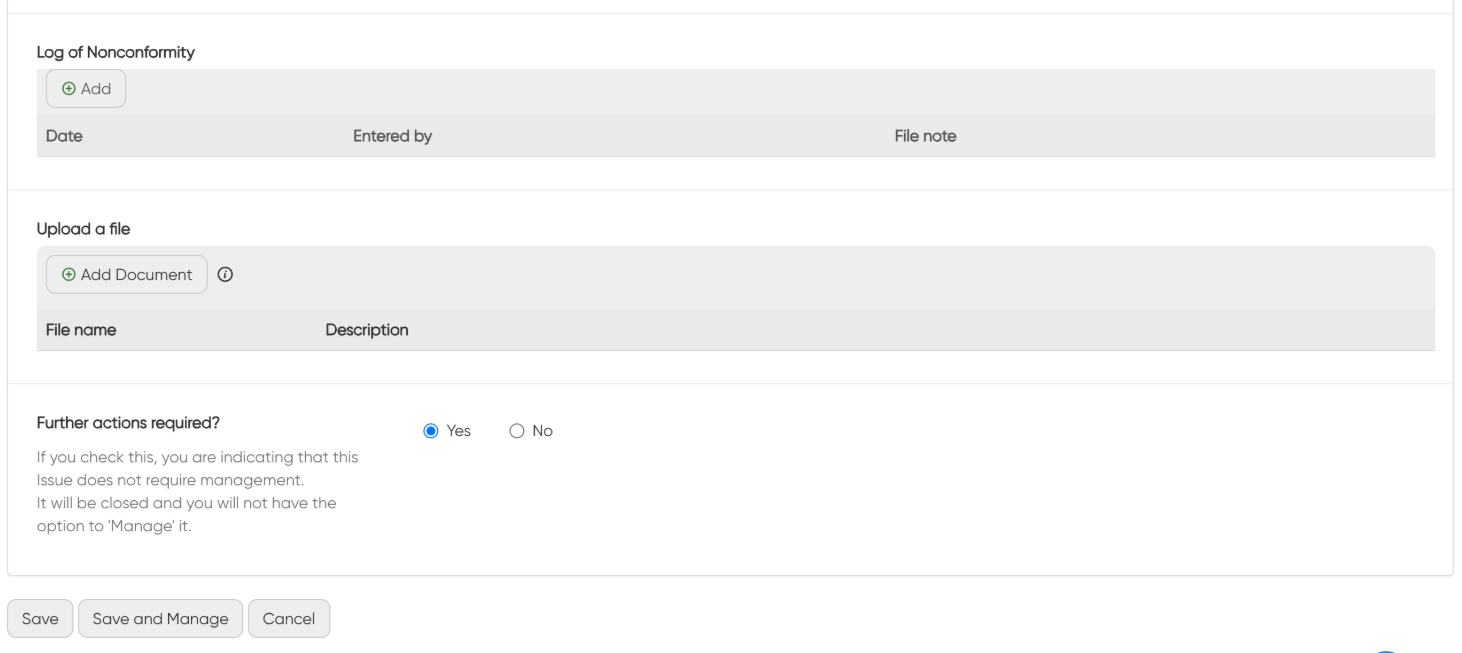
Use this section to track any notes relating to the non-conformance.
To add a log entry:
- Click Add.
- Use the date selector tool or enter the date the log was entered (defaults to date entered).
- Enter the file note.
- Click Save and New to add another note or Save to return.
Tips for managing non-conformance records
- Ensure all mandatory fields are completed before submitting
- Include as much detail as possible to assist with investigation and corrective actions
- Use the Log of Non-Conformity section to maintain a complete history of updates and activities associated with the record