


New article
Recently updated
Adding a new incident report

Who is this article for?
Administrators and Managers who want to learn about how to add a Lucidity Incident report.
Administrator permissions are required to follow some of these steps.
This article covers adding following incident for the following:
Injury, Environment, Theft, Plant, Property, Process, Drug/Alcohol, Security, Near Miss and Other
Video: Add New Incident Report
1. Adding a new incident report
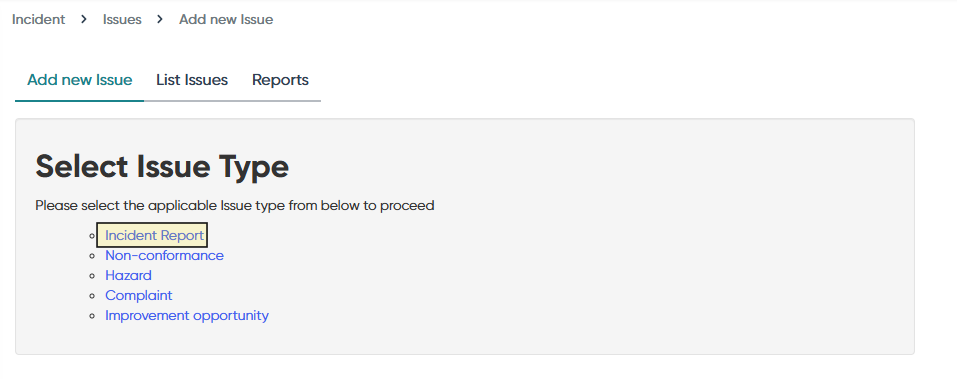
First navigate to the Incident module to see a list of issue types.
Select "Incident Report" as shown below.
1.1. Fill in the incident report form with all the required details
This will open a new incident report form with the fields shown below. Fill in the fields required and submit once ready. For a full list of the fields and descriptions of each field see the table below.
2. Definitions of incident report fields
| Section | Definition | Details |
|---|---|---|
| Incident details | Date of incident | Use the date selector tool or enter the date of the incident (defaults to date entered). |
| Time of incident | Use the time selector tool or enter the time of the incident (defaults to time entered). | |
| Description | Enter a brief description of the incident. | |
| Is this a work-related incident? | Select Yes or No. | |
| Admin details | Time reported | Use the time selector tool or enter the time the incident was reported. |
| Incident categories | Category list | Select all relevant incident categories. If selected, sub-pages for each category must be completed on the next screen. |
| Other information | Work activity performed | Select the type of work activity performed, e.g., access and egress, earthworks. |
| Sources of hazard | Select the source of the hazard, e.g., physical environment, plant, and equipment. | |
| Primary hazard | Select the primary hazard, e.g., bites and stings, chemicals, dust, heat. | |
| Secondary hazards? | Select Yes or No. | |
| Secondary hazards |
Visible only if Yes is selected. Click Add to select one or more secondary hazards. |
|
| Actual incident category | Select the actual incident category, e.g., 1 - Insignificant, 4 - Major | |
| Potential incident category | Select the potential incident category, e.g., 1 - Insignificant, 4 - Major. | |
| Contractor incident? | Select Yes or No. | |
| Contractor involved |
Visible only if Yes is selected. Click Add to select one or more contractors. |
|
| Regulatory notifiable incident? | Select Yes or No. | |
| Regulatory notifications |
Visible only if Yes is selected. Click Add to select one or more notifications:
|
|
| Notices issued? | Select Yes or No | |
| Notices |
Visible only if Yes is selected. Click Add to select one or more notices:
|
|
| Persons involved |
Add names of all involved individuals. Click Add to enter one or more names:
|
|
| Witnesses |
Add names of all witnesses: Click Add to enter one or more names:
|
3. Incident categories
This section summarises the information required to be entered in each incident category. The information is used in reporting and statistics, and it is therefore important to enter as much information as accurately as possible, even for non-mandatory fields where relevant.
3.1. Incident category: Injury
Note: If the Injury Category filter is used to select 'Injuries', those injuries that have not had the 'Injury Severity' field populated will not be returned in lists, reports, or dashboard widgets.
| Section | Definition | Image (click to enlarge) |
|---|---|---|
| Injured person's details | Select or enter the injured person's name and employment status | |
| Shift information | Outlines the shift and working conditions of the injured person. Fields include the shift type, length and number of days since break. | |
| Injury information |
Provides the detail on the injury, including severity and actions. Fields include the injury severity, immediate and first aid action provided, the injury nature etc.
|
|
| Body part injured |
The interactive body map can be used to illustrate the injured area of the body. Click on the injured body part - either in the diagram or the name. |
|
| Injury outcome | Summarises follow up treatment and condition. Fields include questions relating to the injured person's current work and medical status. |
The new injury report will be listed in the dropdown at the top of the report page, alongside the injury report, and is editable from here:
3.2. Incident category: Environment
| Section | Definition | Image (click to enlarge) |
|---|---|---|
| General | Enter theft details, including immediate actions taken and value. | |
| Land contamination | Selecting Yes reveals extra fields like contaminant type, name, and volume released. | |
| Water contamination/ discharge | Selecting Yes reveals extra fields such as contaminant type, name, and volume released. | |
| Flora |
Selecting Yes reveals the option to add details for each affected flora item. Click Add to enter flora species and details like botanical name and number affected. |
|
| Fauna |
Selecting Yes reveals options to add details for each affected fauna item. Click Add to include flora species and enter details like botanical name and number affected. |
As above. |
| Erosion and sediment | When Yes is selected, additional fields appear including release source and type. | |
| Solids and other wastes | When Yes is selected, additional fields appear including waste type and volume. | |
| Archaeological or cultural | When Yes is selected, additional fields appear including if Indigenous and site name. |
3.3. Incident category: Theft
| Section | Definition | Image (click to enlarge) |
|---|---|---|
| General | Enter details relating to the theft including immediate action taken and value. |
3.4. Incident category: Plant
| Section | Definition | Image (click to enlarge) |
|---|---|---|
| General | Enter details relating to the plant damage, including immediate action taken. | |
| Plant details | Click Add to list all plant damaged and add details such as plant reg, owner and operator name. |
3.5. Incident category: Property
| Section | Definition | Image (click to enlarge) |
|---|---|---|
| General | Enter details relating to the property damaged including immediate action taken and value. |
3.6. Incident category: Process
| Section | Definition | Image (click to enlarge) |
|---|---|---|
| General | List the immediate action taken. |
3.7. Incident category: Drug/ Alcohol
| Section | Definition | Image (click to enlarge) |
|---|---|---|
| General | Enter details relating to the drug or alcohol incident including date testing, type of test and drugs detected. |
3.8. Incident category: Security
| Section | Definition | Image (click to enlarge) |
|---|---|---|
| General | List the immediate action taken. |
3.9. Incident category: Near Miss
| Section | Definition | Image (click to enlarge) |
|---|---|---|
| General | Enter details relating to the near miss including action taken and the type of near miss. |
3.10. Incident category: Others
| Section | Definition | Image (click to enlarge) |
|---|---|---|
| General | List the immediate action taken. |