


New article
Recently updated
Adding and editing Access roles

Who is this article for?
Administrators who want to learn to add and edit new Access roles.
Administrator permissions are required.
This article explains how to create, edit, and copy access roles to manage user permissions within your system.
Adding a new role
To create a new role:
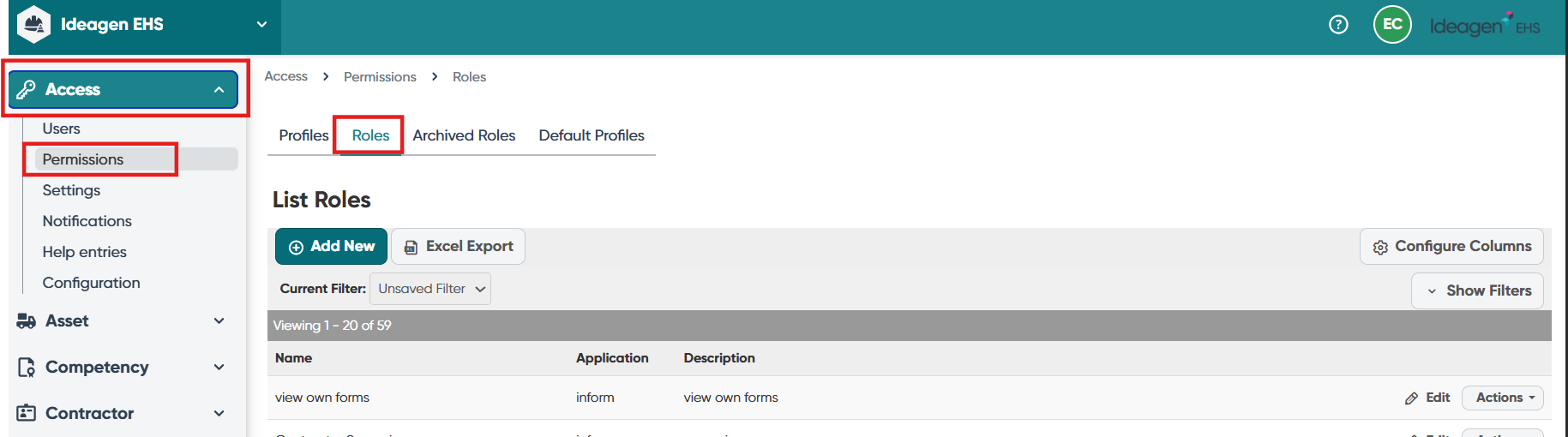
- Go to Module.
- Select Permissions.
- Choose Role.
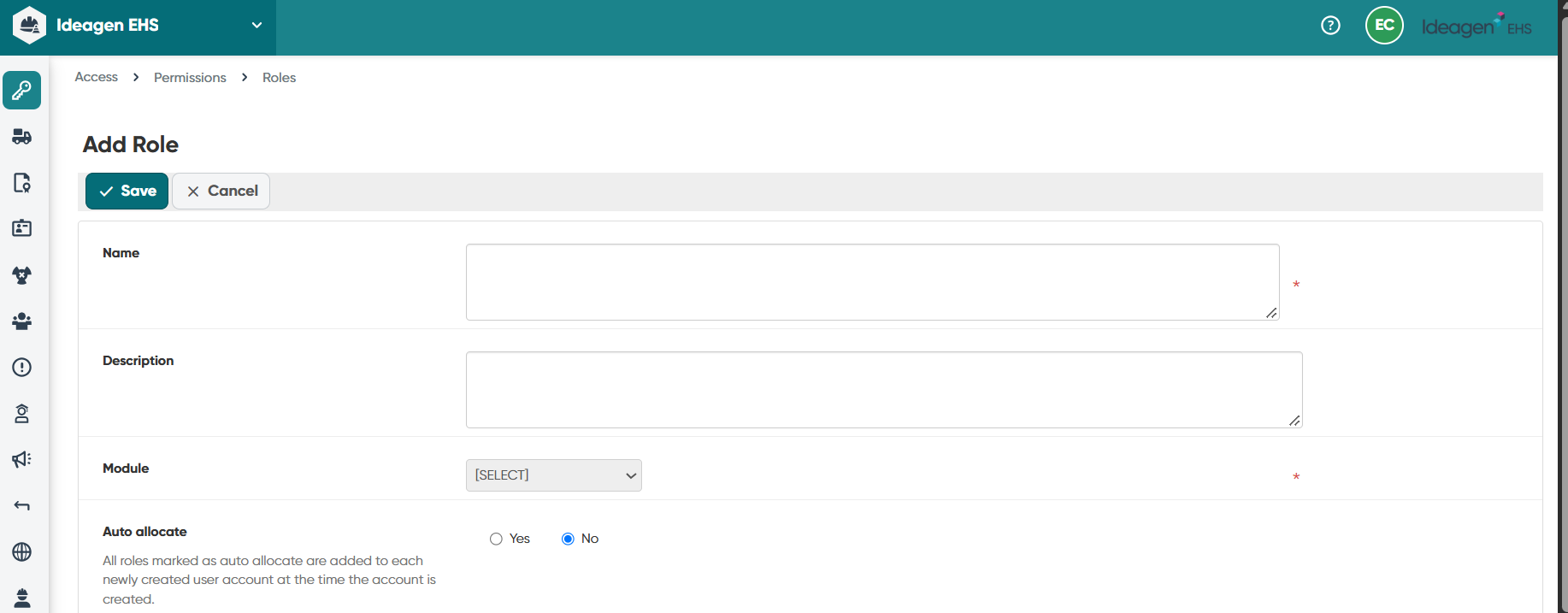
- Complete the required fields.
- Click Save.
Note: The details captured for each role may vary slightly between each system configuration. Fields marked with * are mandatory.
Understanding role fields
The following table describes the fields available when creating or editing a role:
| Name | Enter the name of the role. |
| Description | Enter a description. |
| Application | Select the application or module the role applies to. |
| Auto Allocate | Select 'Yes' to automatically allocate the role to all new user accounts created in the system. This does not work retrospectively and will only apply to new user accounts created after this selection. |
| Access Privileges | Once the application or module has been selected, a list of access privileges appears. Tick the privileges which are to apply to the role. |
Note: This feature will not display if Access Profiles are utilised.
Assigning users
To assign users to the role:
- Click Add.
- Use filters to locate relevant users, or click Select All to assign the role to all users.
- Click Done.
Editing a role
To edit an existing role:
- Go to the Roles page.
- Locate the specific role using relevant filters.
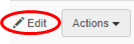
- Click Edit to the far right of the role.
- Adjust fields as required.
- Click Save.
Important: If a user's role changes or privileges in a role they already have been assigned to change, the user will need to log out and back in to the system for the changes to take effect.
Copying a role
If a new role needs to be created and a similar role exists, copying the existing role and making the necessary changes may be an easier option.
To copy an existing role:
- Go to the Roles page.
- Locate the specific role using relevant filters.
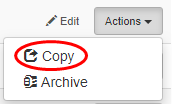
- Click Actions to the far right of the role.
- Click Copy.
- Make necessary changes.
- Click Save.
For a visual demonstration of copying and archiving roles, watch this video: Copy & Archive Roles